The central difference between Chromebook and a Windows laptop is the operating model: Chromebooks are designed around cloud-first workflows and web apps, while Windows laptops are designed to run local software and a wider range of desktop applications. In practice, the better choice depends on your everyday tasks and how you store and use files—there usually isn’t one dominant option for everyone.
| Everyday factor | Chromebook (general) | Windows laptop (general) |
|---|---|---|
| Typical software | Web apps; Google Workspace; many Android apps (varies) | Desktop apps plus web apps; broad compatibility |
| File storage | Often relies on cloud storage; offline support varies by app | Local storage is common; cloud optional |
| Hardware variety | Usually fewer configurations; performance varies by model | Wide range of CPUs, RAM, storage, and screen types |
| Updates | Managed by Google; update policy depends on device | Managed by Microsoft and OEM; update behavior varies |
| Security approach | Designed around sandboxing and account-based access | More configurable; security depends on settings and software |
| Best fit | Browsing, documents, email, streaming, school basics | Workflows needing specific desktop tools or peripherals |
Important limitation: “Chromebook” and “Windows laptop” are categories, not single products. Performance, storage, offline capability, update duration, and app support can vary significantly by model and configuration. The conclusions below stay at the level that can be supported without assuming a specific device.
What a Chromebook is (and how it’s meant to be used)
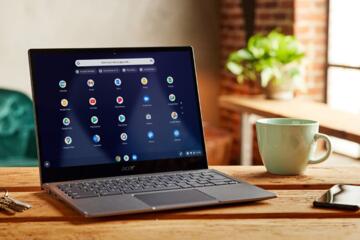
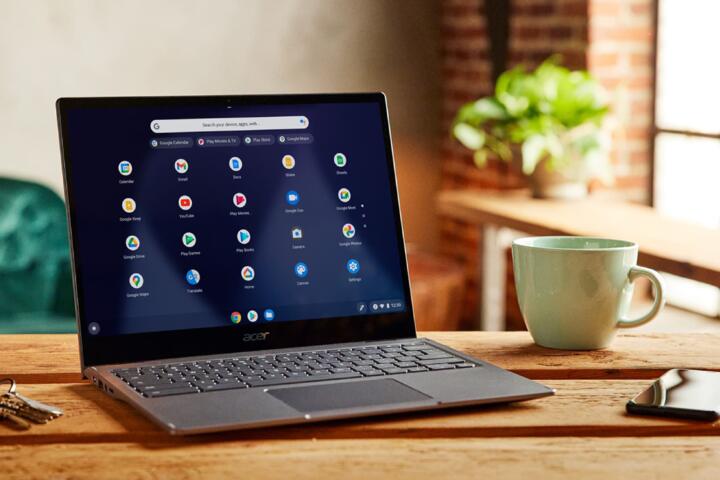
A Chromebook is a laptop that runs ChromeOS. The platform is optimized for everyday tasks that work well in a browser: web browsing, email, documents, spreadsheets, presentations, and streaming. Many users rely on cloud services (such as Google Drive/Workspace) and sign in with a Google account. Depending on the Chromebook model and your apps, offline use may be available for certain web apps and features.
If you want a deeper look at the Chromebook approach, see Chromebook buying guide: what to check before you choose.
What a Windows laptop is (and how it’s meant to be used)
A Windows laptop runs Microsoft Windows and typically supports a broader range of software, including traditional desktop applications. Windows also tends to be more flexible for specialized workflows (for example, certain business tools, creative software, or device-specific utilities). File storage is commonly local (on SSD/HDD), with cloud services optional depending on your setup.
For a deeper dive into the Windows side, see Windows laptop checklist: specs and features that matter for daily use.
Criterion-by-criterion comparison for everyday use
1) Everyday software and app compatibility
Practical difference: Chromebooks generally excel when your tasks are handled by web apps and cloud services. Windows laptops generally handle a wider range of desktop software and peripherals that may require drivers or installers.
Why it matters: If your school or workplace depends on a specific desktop program, you may find that a Chromebook can be limiting. Conversely, if your daily work is mostly browser-based, a Chromebook can feel simpler and faster to set up.
Who benefits: Chromebook: students and users whose daily tasks are email, docs, spreadsheets, web research, and streaming. Windows: users who need specific desktop apps, legacy software, or advanced device integrations.
Data/context limits: App support can vary by Chromebook model and by the specific Windows program. Without knowing your exact software list, you should verify compatibility before buying.
2) Offline work and file access
Practical difference: Chromebooks often rely on cloud storage and web apps, though offline modes may exist for certain services. Windows laptops more commonly support offline-first workflows because files and applications are typically local.
Why it matters: If you commute, travel, or frequently lose connectivity, offline capability becomes a deciding factor. Even when offline support exists on a Chromebook, it may be limited to particular apps or file types.
Who benefits: Chromebook: users who can tolerate occasional offline limitations or who already structure work around cloud sync. Windows: users who regularly need offline access to files and desktop applications.
Data/context limits: Offline behavior depends on the specific Chromebook, the apps you use, and your storage setup.
3) Performance for daily tasks
Practical difference: Both categories include low-end and higher-end models. In general, Chromebooks are often tuned for lighter workloads, while Windows laptops span from budget to high-performance configurations.
Why it matters: Everyday responsiveness (opening apps, switching tabs, video playback, document editing) depends on CPU, RAM, and storage. A Chromebook can feel smooth for web tasks, but a Windows laptop may handle heavier multitasking or desktop apps more comfortably.
Who benefits: Chromebook: users focused on browser-based productivity and media. Windows: users who multitask heavily or run desktop software.
Data/context limits: Without specific model specs, you can’t generalize performance. Compare RAM, storage type, and CPU class for the exact devices you’re considering.
4) Setup, simplicity, and day-one usability
Practical difference: Chromebooks are typically quick to set up around a Google account and web services. Windows laptops can be straightforward too, but they often involve more choices (account setup, privacy settings, updates, and installing apps).
Why it matters: If you want minimal friction—especially for kids, students, or first-time laptop buyers—Chromebook simplicity can be a real advantage.
Who benefits: Chromebook: simplicity-first buyers and households that want consistent, low-maintenance setups. Windows: buyers who want control over software and system settings.
Data/context limits: “Ease” depends on your familiarity with the ecosystem and how much software you need to install.
5) Updates and long-term software support
Practical difference: Chromebooks receive updates managed by Google, but the duration depends on the device’s update policy. Windows laptops receive updates from Microsoft and OEMs, and the practical experience can vary with hardware and configuration.
Why it matters: Update support affects security and app compatibility over time. If you keep laptops for several years, you should check the update policy for the exact Chromebook model and the Windows support lifecycle for the exact Windows version.
Who benefits: Chromebook: buyers who want predictable platform-managed updates (when the device has a long update window). Windows: buyers who prefer broader software compatibility and can manage updates.
Data/context limits: You must verify the specific device’s update terms; they are not identical across all Chromebooks.
6) Security and account-based risk management
Practical difference: Chromebooks are designed around account-based access and sandboxing, which can reduce certain classes of risk. Windows security depends more on user settings, installed software, and how you manage accounts and permissions.
Why it matters: If you want a “safer by default” experience with fewer moving parts, Chromebook’s model can be appealing. If you need specific security tooling or advanced configuration, Windows may fit better.
Who benefits: Chromebook: users who prefer a guided, less customizable environment. Windows: users who want granular control or must integrate with enterprise security tools.
Data/context limits: Security outcomes depend on behavior (phishing awareness, account hygiene) and the exact software installed.
7) Hardware expansion, ports, and peripheral compatibility
Practical difference: Windows laptops generally have the broadest peripheral compatibility because more drivers and utilities are available for Windows. Chromebooks can work well with many peripherals, but compatibility can be more variable depending on the device and the Chromebook’s support.
Why it matters: If you need a specific printer, scanner, docking station, or specialized USB device, Windows is often the safer bet.
Who benefits: Chromebook: users who rely on standard USB/HDMI connections and cloud printing workflows. Windows: users with specialized peripherals or docking needs.
Data/context limits: Peripheral support is highly device-specific; check the Chromebook’s documented compatibility for your exact peripherals.
8) Maintenance and troubleshooting
Practical difference: Chromebooks typically require less manual maintenance because the OS is managed and updates are handled by the platform. Windows laptops can require more troubleshooting steps (drivers, updates, app conflicts), though many issues are manageable with good update hygiene.
Why it matters: For everyday users, “time spent fixing” can matter as much as raw capability.
Who benefits: Chromebook: households and students who want fewer maintenance tasks. Windows: users comfortable installing and managing software and drivers.
Data/context limits: Maintenance burden varies with how you use the laptop and what software you install.
9) Hidden ownership trade-offs (costs beyond the sticker price)
Practical difference: The biggest hidden trade-off is often ecosystem fit. If you buy a Chromebook but your workflow depends on desktop apps or large offline file libraries, you may incur extra costs (subscriptions, alternative tools, or eventually switching devices). Conversely, if you buy a Windows laptop but only use browser-based tasks, you may be paying for capabilities you don’t need.
Why it matters: Total cost of ownership includes software subscriptions, storage needs, and how often you need to replace the device because it no longer fits your workflow.
Who benefits: Chromebook: buyers who already live in web apps and cloud storage. Windows: buyers who need desktop software or local-first workflows.
Data/context limits: Without knowing your current toolchain and storage habits, you can’t quantify these costs.
When the usual recommendation reverses
- Choose Chromebook even if you think you need Windows: If your “Windows-only” apps are actually web versions (or you can use compatible alternatives) and your offline needs are modest, a Chromebook may still cover your daily tasks with less friction.
- Choose Windows even if you want simplicity: If you rely on specific desktop software, offline-heavy workflows, or specialized peripherals, Windows can reduce workarounds and compatibility headaches.
- Choose Chromebook for travel, but verify offline: If you travel often, Chromebook can be great when your key apps support offline use. If they don’t, Windows may be the more reliable choice.
- Choose Windows for multitasking: If you routinely run multiple desktop apps, large spreadsheets, or heavier media workflows, Windows configurations can be better matched.
Questions to answer before you choose
- Which exact apps do you need daily? List them and check whether they run in a browser or have Chromebook support.
- Do you need offline access? If yes, which files and which apps must work without internet?
- How do you store your work? Are you comfortable with cloud-first storage, or do you need local-first control?
- What peripherals do you use? Printers, scanners, docks, and specialized USB devices can change the answer.
- How long do you keep laptops? Verify update support for the specific Chromebook model and the Windows version lifecycle.
- Who will use it? For kids and students, simplicity and guided setup can matter more than maximum compatibility.
Conditional verdicts (no single universal winner)
- Best for everyday web-based work and simplicity: Chromebook, if your tasks fit browser/cloud workflows and you can confirm offline needs are covered.
- Best for long trips with heavy offline requirements: Windows laptop, if you need offline desktop apps and local file access reliably.
- Best for family use and low-maintenance setup: Chromebook, when the household’s software needs are mostly web-based and you value streamlined management.
- Best for low running costs (software fit matters): Chromebook can be cost-effective if you already use free/low-cost web tools; Windows can be cost-effective if you avoid paying for workarounds or subscriptions by using your existing desktop software.
- Best for performance with desktop apps: Windows laptop, especially when your daily work includes heavier desktop applications or multitasking.
- Best for peripheral-heavy setups (docks, specialized devices): Windows laptop, assuming your devices have known Windows driver support.
- Best for “just works” browsing, email, and streaming: Chromebook, provided the specific model meets your performance expectations for multitasking and media playback.
If you share your top 5 daily apps (and whether you need offline access), you can narrow the choice quickly. For a technical explainer on how app ecosystems differ, see Chromebook app support explained: web, Android, and compatibility limits.